Getting Started with
CareSens Air
Smartphone Receiver
Getting started with the CareSens Air Smartphone Receiver is simple. Whether you’re setting up a patient for the first time or connecting to Sens365 to view glucose data remotely, our step-by-step video guides will walk you through the process.
Everything You Need to Get Started
The CareSens Air Smartphone Receiver has been designed to make remote glucose monitoring simple. Patients receive a pre-configured smartphone or tablet with all required applications already installed, allowing for quick and easy setup.
Each patient should receive:
1 x smartphone or tablet
1 x charger with USB cable
1 x CareSens Air CGM sensor
Simply follow the three step-by-step videos below to get your patient set up, connect to Sens365 and start viewing glucose data remotely.
It's easy to get set up and started

Step up the healthcare professional account


Adding colleagues and patients

Patient login and two-factor authentication
Need additional support?
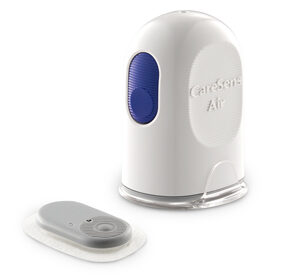
CareSens Air provides a range of helpful resources to support both healthcare professionals and patients.
Visit the CareSens Air Resource Centre to access:
- How-to guides
- User manuals
- Training videos
- Frequently Asked Questions (FAQs)
- Product information and support materials
Whether you’re setting up a new patient, troubleshooting a query or looking for additional guidance, you’ll find everything you need in one place.